The pages created by our NabWP AI website builder use real WordPress blocks that you can edit. You can replace text and photographs, rearrange sections, adjust buttons and refine the page layout through the WordPress editing tools supported by the active theme. AI generation gives you a starting point while leaving the ongoing editorial decisions with you.
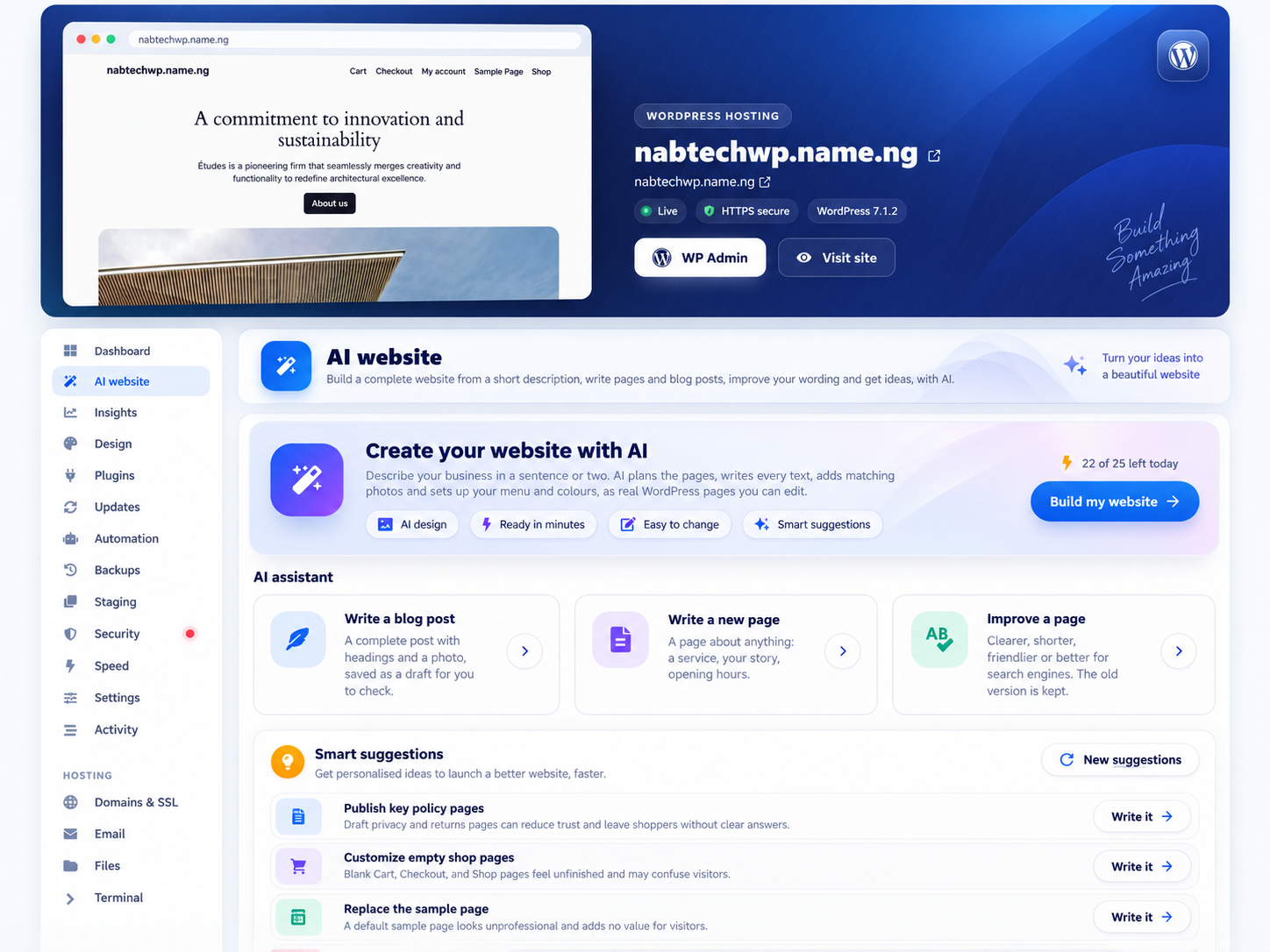
AI website creation on NabWP. Generated websites remain editable in WordPress.
IN THIS ARTICLE
01 Make the website reflect your business
Begin with the parts that establish your identity: the website title, logo, primary colours, tone of voice and main call to action. Replace generic imagery with relevant photographs of your products, people or work when you have permission to use those assets. Then check that headings, button labels and contact details describe your actual business consistently across the website.
Some changes apply only to the page you are editing. Others, such as a shared header, footer or global style, can affect several pages. Preview a representative selection of pages whenever you change a shared design setting. Check mobile layouts as well as wider screens, especially menus, long headings and buttons placed over images.
02 Choose a focused edit or a complete redesign
For a small improvement, edit the existing blocks or ask the AI content tools for a focused rewrite. You do not need to run the full website builder again every time you want different wording. A complete rebuild has a wider effect and can prepare a different active design or replace earlier builder-created pages, depending on the selected option.
If your website uses a separate page builder or a custom theme, its own editing system may control some layouts. Our native block tools do not promise automatic conversion of every external layout. We can help identify the right editing route so you can improve the site while preserving the work you want to keep.
03 Example: refine the shared header without rebuilding the site
Suppose an AI-built business site has a shared header with a generic Contact button. Open the editor responsible for that shared header, then use this small change brief. Replace the destination with the real published enquiry page.
Element: the shared header call-to-action button.
New label: Request a quote.
Destination: https://example.com/contact/
Preserve: existing logo, navigation links and page content.
Preview the Home, Services and Contact pages after saving. On a narrow screen, check the menu toggle, button wrapping and whether the destination remains usable. If the button appears inside only one page rather than the shared header, confirm the editing scope before repeating the change elsewhere.
Expected result: the intended pages show one consistent enquiry action. A focused block or template edit achieves the improvement without activating a different theme or replacing generated pages.
Which pages should I check after editing a shared design element?
- Edit one representative page and replace sample wording or imagery with verified business content.
- When changing a shared header, footer or global style, preview several pages that use it.
- Check the mobile navigation, long headings, buttons and contact journey before applying more unrelated design changes.
A block-theme template can affect many pages while a page block changes only that page's content. Identify which you are editing. If a third-party builder owns a layout, use its supported tools instead of assuming the native AI block workflow will convert it without changing the design.